
The integration of Gemini into Google Sheets is a pivotal development within Google’s broader "AI Everywhere" strategy, signaling a comprehensive effort to infuse artificial intelligence across its entire suite of Workspace applications. This strategic push aims to enhance user productivity, streamline operations, and democratize access to advanced analytical capabilities, making sophisticated tools accessible to a wider audience, regardless of their technical proficiency. The move also positions Google competitively in an increasingly AI-driven market, directly challenging rivals who are similarly embedding AI assistants, such as Microsoft Copilot, into their own productivity suites.
Background: The Evolution of AI in Productivity Tools
The concept of intelligent assistance in spreadsheets is not entirely new. For decades, users have relied on macros, templates, and built-in functions to automate repetitive tasks and simplify complex calculations. However, these tools often required specific technical knowledge, programming skills, or a deep understanding of spreadsheet logic. The advent of large language models (LLMs) like Gemini represents a qualitative leap, moving beyond predefined rules and templates to genuinely understand and respond to natural language commands.
Google’s journey into generative AI has been characterized by substantial investment and rapid development. Gemini, initially launched as a multimodal AI model, was designed to be highly versatile, capable of understanding and operating across various data types, including text, code, audio, image, and video. Its subsequent integration into Google Workspace products, including Gmail, Docs, Slides, and now Sheets, reflects a deliberate strategy to embed AI as a fundamental layer of user interaction, making digital work more intuitive and efficient. This integration began rolling out in earnest, with features becoming progressively available to Google Workspace subscribers and, in some capacities, to free users of the standalone Gemini web application.
Unlocking Efficiency: Gemini’s Core Functionality in Google Sheets
At its heart, Gemini in Google Sheets acts as an intelligent co-pilot, designed to assist users at every stage of spreadsheet management. Its primary capabilities include:
- Sheet Creation: Generating entire spreadsheet structures based on a simple textual description.
- Data Population: Suggesting or generating sample data for testing, demonstration, or initial setup.
- Formula Generation: Crafting complex formulas (e.g., VLOOKUP, SUMIF, array formulas) from natural language requests, complete with explanations.
- Data Analysis: Providing insights, summarizing data, and suggesting visualizations based on user prompts.
- Automation via Scripting: Writing Google Apps Script code to automate advanced tasks, custom formatting, and integrations.
This functionality significantly reduces the learning curve for new users and accelerates workflows for experienced ones, allowing them to focus on strategic thinking rather than tactical data entry and formula construction.
Method 1: Seamless Integration for Google Workspace Users
For organizations and professionals subscribed to Google Workspace plans that include Gemini add-ons (such as Gemini Enterprise or Business), the AI assistant is directly accessible within the Google Sheets interface. This built-in workspace integration provides a highly streamlined experience, allowing users to interact with Gemini without leaving their spreadsheet environment.
Step 1: Accessing Gemini in Google Sheets
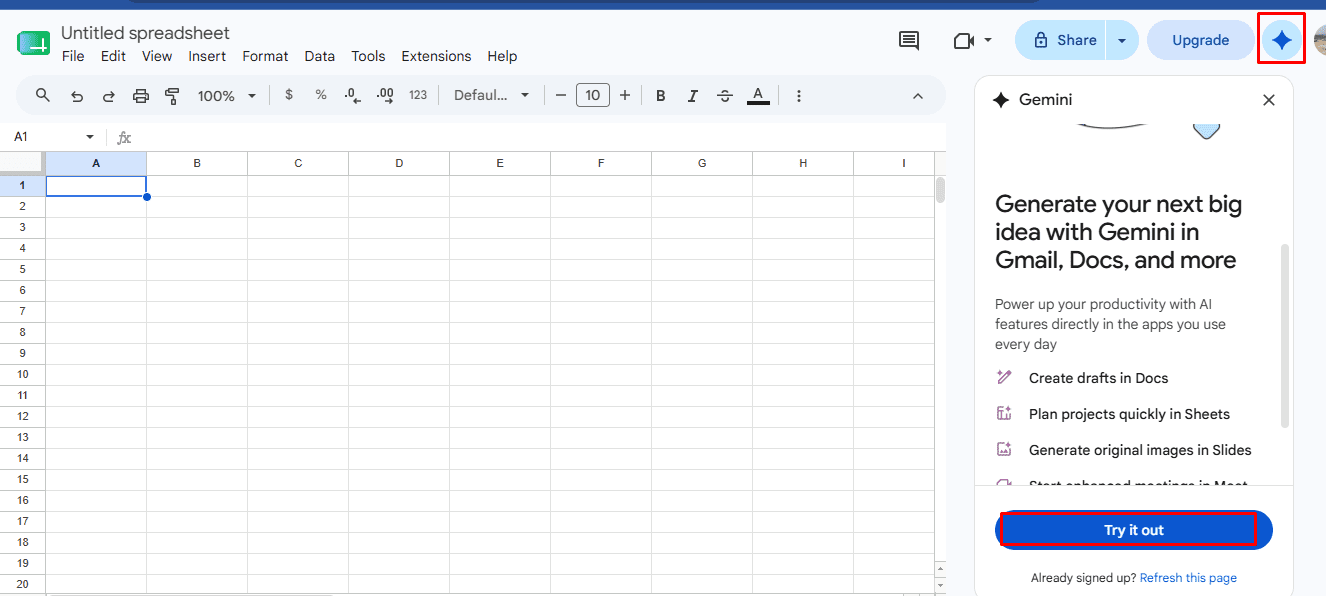
Users can typically access Gemini through a dedicated side panel within Google Sheets, often labeled "Ask Gemini" or similar. This panel provides a chat-like interface where users can type their prompts. The presence of this integrated panel signifies Google’s commitment to making AI assistance an intrinsic part of the Workspace experience, rather than a separate tool. The ability to invoke Gemini directly within the application minimizes context switching, enhancing focus and workflow continuity.
Step 2: Prompting Gemini to Create Sheets
Instead of manually defining column headers, data types, and initial rows, users can simply describe the desired spreadsheet structure. For example, a user might prompt: "Create a sales tracking sheet with columns for Date, Product Name, Quantity Sold, Unit Price, Total Revenue, Customer Name, and Region." Gemini will then process this request, understanding the intent and generating a table with appropriate headers. The AI can infer data types and even suggest initial formatting, anticipating user needs. This capability is particularly beneficial for starting new projects, where the initial setup can often be the most time-consuming phase.
Step 3: Reviewing and Inserting the Output
After submitting a prompt, Gemini displays a preview of the generated table or data within the side panel. This allows users to review the output, ensuring that the columns, headers, and any sample data align with their requirements. The iterative nature of this process is crucial: users can refine their prompts based on the preview, asking Gemini to add more columns, modify data types, or adjust formatting. Once satisfied, the output can be inserted directly into the current sheet or used to create a new sheet, seamlessly integrating the AI-generated content into the user’s workspace. This iterative refinement process is key to leveraging generative AI effectively, allowing users to guide the AI towards the desired outcome.
Step 4: Asking for Formulas and Analysis
One of Gemini’s most powerful features is its ability to generate complex formulas from natural language descriptions. Users no longer need to memorize intricate syntax or search for specific functions. A prompt like, "Calculate the total revenue for each product category," or "Write a formula to highlight sales greater than $1,000," will yield the corresponding Google Sheets formula, often accompanied by an explanation of how it works. Gemini can also suggest improvements or alternative approaches, enhancing the user’s understanding and efficiency. This significantly lowers the barrier to performing advanced data analysis, enabling users without deep spreadsheet expertise to derive meaningful insights. The "Pro Tip" about using the in-cell @ menu or "Help me organize" further underscores Google’s efforts to embed AI assistance directly into the user’s most common interaction points.
Method 2: Creating Sheets via the Gemini Web App
For users who do not have a Google Workspace account with a Gemini add-on, or prefer to use the standalone AI, the Gemini web application offers an alternative pathway to leverage AI for spreadsheet creation. This method is particularly accessible for individual users and those on free Google accounts.
Step 1: Prompting Gemini to Generate Structured Data
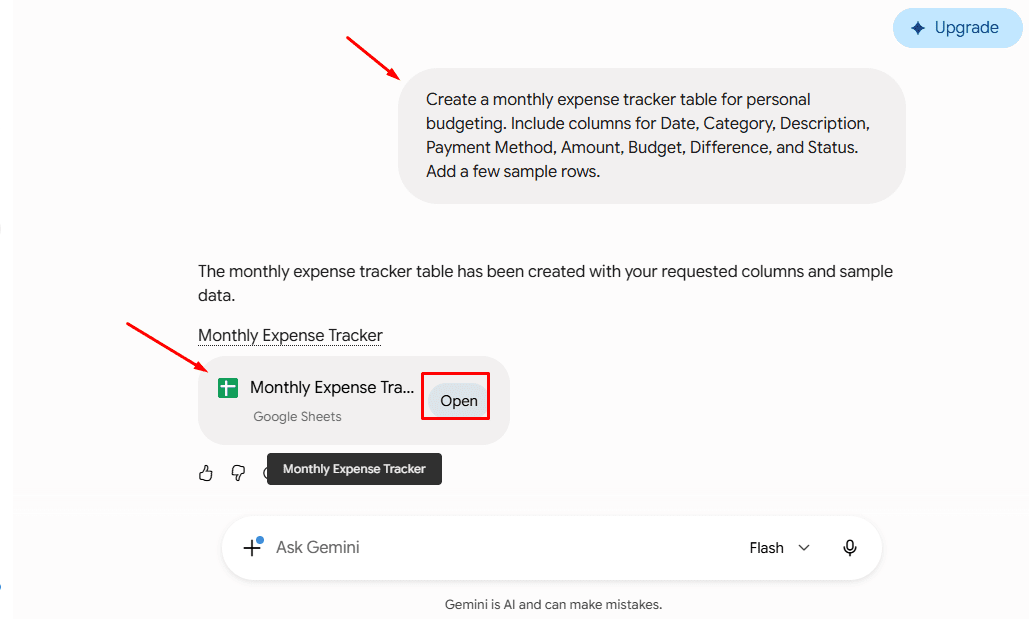
Users interact with Gemini directly through its web interface (gemini.google.com). Here, they can issue prompts similar to those used within Google Sheets, requesting the creation of structured data tables. For instance, a user might provide the prompt: "Create a monthly expense tracker table for personal budgeting. Include columns for Date, Category, Description, Payment Method, Amount, Budget, Difference, and Status. Add a few sample rows." Gemini processes this request and generates a markdown-formatted table directly within its chat response. This method emphasizes the AI’s ability to structure information logically, preparing it for export.
Step 2: Exporting to Google Sheets
Once Gemini generates the table in its response, it typically provides options to export or copy the data. A common feature is a "Export to Sheets" button or similar functionality. With a single click, this structured data can be directly transferred into a new Google Sheet. This capability streamlines the transition from an AI-generated idea to a functional spreadsheet, bypassing the need for manual copying and pasting, which can often introduce formatting errors.
Step 3: Opening in the Spreadsheet
Upon export, the new Google Sheet opens automatically, pre-populated with the AI-generated table. From this point, users can apply standard Google Sheets formatting, add more data, or use the "Help me organize" feature (if available) to further enhance the spreadsheet. This method provides a convenient entry point for anyone to quickly prototype and populate spreadsheets using AI, bridging the gap between a conversational AI and a structured data environment.
Method 3: Generating Apps Script with Gemini (For Advanced Automation)
For power users, developers, and those requiring highly customized or automated spreadsheet solutions, Gemini offers the ability to generate Google Apps Script code. Google Apps Script is a JavaScript-based language that allows users to extend the functionality of Google Workspace applications, automate tasks, and integrate with external services. Traditionally, writing Apps Script required programming knowledge, but Gemini democratizes this capability.
Step 1: Requesting the Script
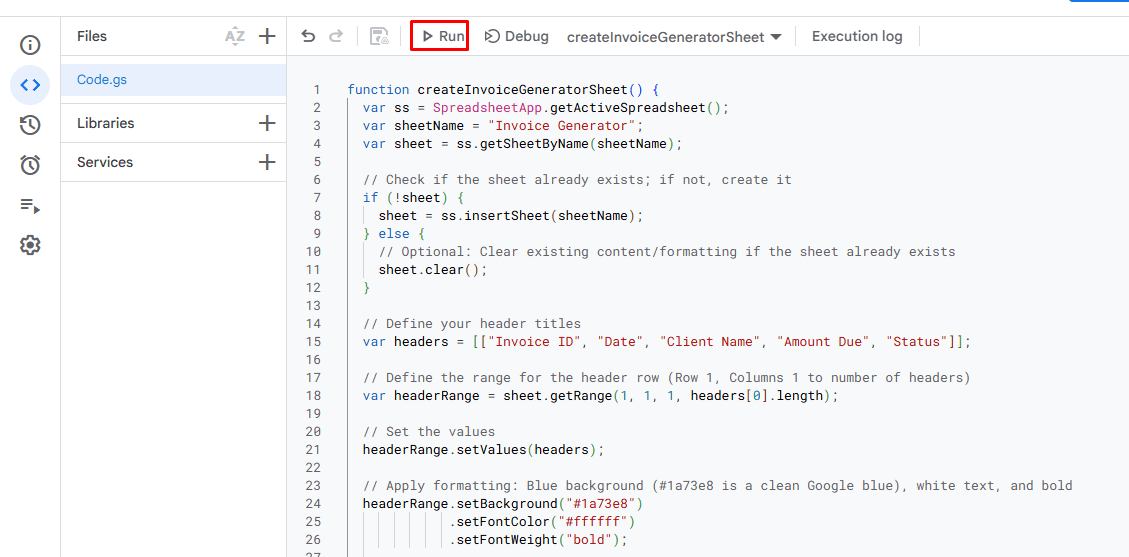
Users can prompt Gemini with specific requirements for automation or advanced customization. For example: "Write a Google Apps Script that creates a new sheet called ‘Invoice Generator’, sets the header row to blue with white text, and bolds the font." Gemini will then generate the corresponding Apps Script code, often including comments to explain the different parts of the script. This capability is transformative, allowing users to create custom tools and workflows without needing to master a programming language from scratch.
Step 2: Pasting It into Sheets
The generated Apps Script code needs to be inserted into the Google Apps Script editor, which is accessible from within Google Sheets (Extensions > Apps Script). Users simply copy the code from Gemini’s response and paste it into the script editor. After saving the script, it can be executed directly from the editor or linked to a custom menu item or button within the Google Sheet itself. This manual step ensures user control and allows for further customization or debugging if needed.
Step 3: Viewing the Result
Upon running the script, the specified actions are automatically performed within the Google Sheet. In the example provided, a new sheet named ‘Invoice Generator’ would be created with a blue header row, white text, and bolded font. This demonstrates the power of AI-generated automation, enabling users to implement complex formatting rules, create dynamic content, or build sophisticated data processing routines with minimal manual effort. The ability to tweak the code with follow-up prompts allows for an iterative development cycle, even for non-programmers.
Broader Implications and Market Impact
The integration of Gemini into Google Sheets extends far beyond mere convenience; it carries significant implications for productivity, skill development, and the competitive landscape of enterprise software.
Productivity Gains: Studies consistently show that professionals spend a substantial portion of their time on repetitive or administrative tasks. AI integration promises to drastically cut down this time. For instance, creating a complex financial model or a detailed project tracker that previously took hours of manual input and formula construction could now be initiated in minutes. Estimates suggest that AI tools can reduce the time spent on routine data tasks by 30-50%, freeing up employees for more strategic, high-value activities.
Democratizing Data Science: By enabling natural language interaction for formula generation and data analysis, Gemini democratizes access to sophisticated data capabilities. Users who might have shied away from complex statistical functions or advanced data visualization techniques due to a lack of technical skills can now leverage AI to perform these tasks. This empowers a broader range of professionals—from small business owners to marketing specialists—to derive deeper insights from their data without needing a dedicated data analyst.

The Evolving Skillset: The rise of AI in productivity tools signals a shift in required skillsets. While foundational knowledge of spreadsheets remains valuable, the emphasis moves from rote memorization of formulas and syntax to "prompt engineering"—the art of crafting effective and precise queries to elicit the best results from AI. Critical thinking, problem-solving, and the ability to validate AI outputs become paramount, rather than mere technical execution.
Competitive Landscape: Google’s move with Gemini in Sheets is a direct response to and an escalation within the AI arms race among tech giants. Microsoft, with its Copilot integration across Microsoft 365, offers similar AI-powered capabilities in Excel, Word, and PowerPoint. This competition is driving rapid innovation, pushing both platforms to offer increasingly sophisticated and seamless AI assistance, ultimately benefiting end-users with more powerful and intuitive tools.
Economic Impact: For businesses, the ability to rapidly create and analyze spreadsheets translates into tangible economic benefits. Faster project initiation, more accurate financial reporting, optimized resource allocation, and quicker market analysis can all contribute to improved operational efficiency and better strategic decision-making. Small and medium-sized enterprises (SMEs) particularly stand to gain, as AI tools can provide capabilities previously only accessible to larger organizations with dedicated IT and data science teams.
Challenges and Considerations
Despite its immense potential, the integration of AI like Gemini into critical applications like Google Sheets also presents challenges and considerations that users and organizations must address.
Data Accuracy and Validation: While Gemini is powerful, it is not infallible. AI models can sometimes "hallucinate" or provide incorrect information, especially when dealing with ambiguous prompts or highly nuanced data. Users must exercise critical judgment and validate the AI’s outputs, particularly for formulas, data interpretations, and financial calculations. Over-reliance without verification could lead to significant errors.
Data Privacy and Security: The use of AI, especially with sensitive corporate or personal data, raises important privacy and security concerns. Organizations must understand how their data is processed by Gemini, where it resides, and whether it is used to train the AI model. Google Workspace’s enterprise-grade security and data governance policies are designed to address these concerns, but user awareness and adherence to best practices remain crucial.

The "Black Box" Nature: For some complex analyses or formula suggestions, the AI’s reasoning might not be immediately transparent. This "black box" nature can make it challenging for users to fully understand why a particular output was generated or to debug issues if they arise. Google’s inclusion of formula explanations helps mitigate this, but complete transparency in complex AI decisions is still an evolving area.
Training and Adoption Curves: While AI aims to simplify, effective utilization still requires users to learn how to interact with it optimally. Crafting precise and effective prompts is a skill that needs development. Organizations will need to invest in training and change management to ensure broad adoption and maximize the benefits of these new AI capabilities.
Expert Perspectives and User Adoption
Early feedback from industry analysts and pilot users suggests a strong positive reception for Gemini’s integration into Google Sheets. "This isn’t just about automation; it’s about augmentation," noted one leading tech analyst. "Gemini allows knowledge workers to think at a higher level, offloading the cognitive burden of remembering syntax or building structures. It shifts the focus from ‘how to do it’ to ‘what to achieve.’" Businesses trialing the features report significant time savings in routine data tasks and a marked increase in the confidence of non-technical staff to tackle more complex spreadsheet projects. While initial adoption may require some adjustment, the intuitive nature of natural language interaction is expected to accelerate widespread use.
The Future of AI in Spreadsheets
The current capabilities of Gemini in Google Sheets represent just the beginning. The future will likely see even deeper integration and more sophisticated functionalities:
- Proactive Suggestions: Gemini could proactively suggest data cleaning, analysis, or visualization based on patterns it detects in the user’s data, anticipating needs before they are prompted.
- Multi-Sheet and Multi-Application Intelligence: The AI might be able to draw insights and perform actions across multiple sheets, files, or even different Google Workspace applications (e.g., pulling data from Gmail into a Sheet, then generating a report in Docs).
- Advanced Predictive Analytics: Beyond basic formulas, Gemini could offer more robust predictive modeling, forecasting, and scenario analysis capabilities accessible through natural language.
- Enhanced Conversational AI: The interaction could become even more conversational and contextual, allowing for complex multi-turn dialogues to refine tasks and explore data.
Conclusion
The integration of Gemini into Google Sheets is a transformative development, redefining the role of spreadsheet software from a manual tool into an intelligent, responsive assistant. By enabling users to create, manage, and analyze data using natural language prompts, Gemini dramatically reduces the time and specialized knowledge required to set up and maintain spreadsheets. Whether managing personal budgets, tracking sales performance, organizing complex projects, or building dynamic dashboards, Gemini empowers users to transform their ideas into functional Google Sheets with unprecedented speed and efficiency. As AI technology continues to evolve, its impact on productivity tools like Google Sheets will undoubtedly grow, ushering in an era where sophisticated data management and analysis are accessible to everyone, fundamentally changing how individuals and organizations interact with their data.