
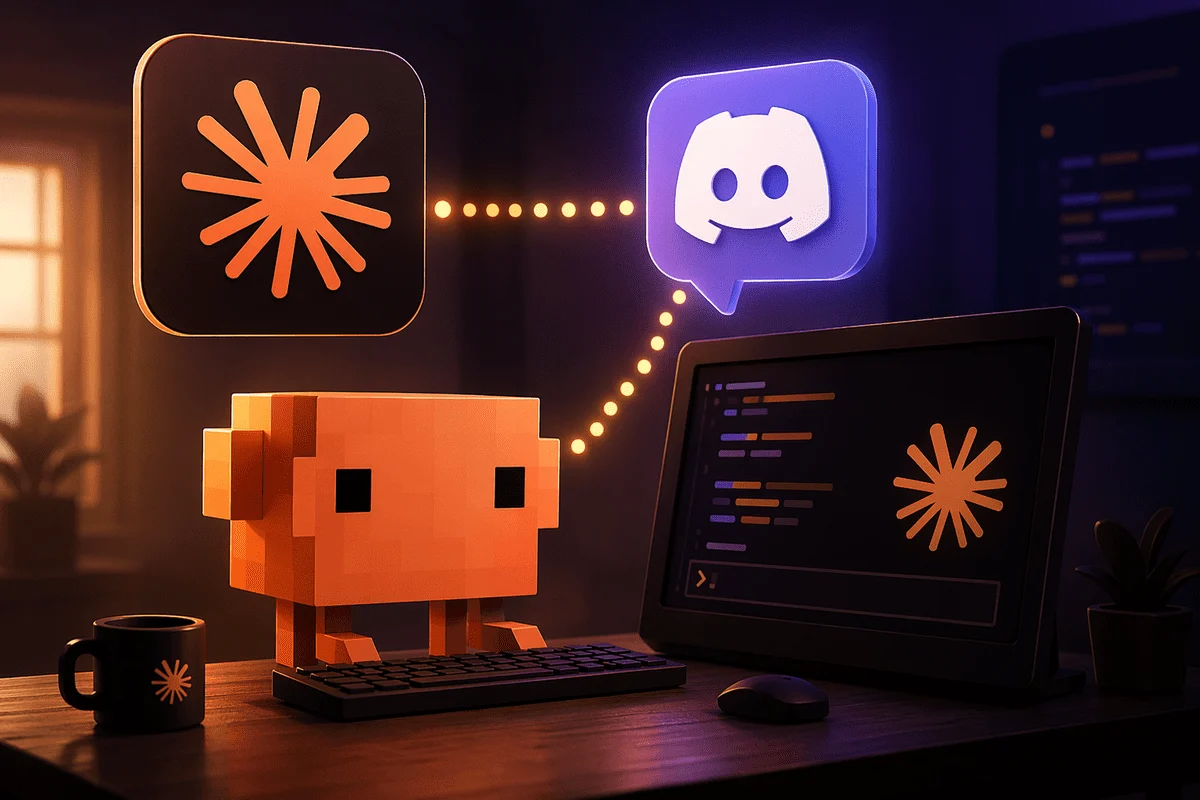
The landscape of artificial intelligence integration within communication platforms is rapidly evolving, with Anthropic’s Claude Code Channels emerging as a significant tool for developers and community managers. This system offers a streamlined and practical alternative to more complex agent frameworks like OpenClaw, enabling users to seamlessly connect a local Claude Code session with Discord servers. Its inherent simplicity, direct compatibility with existing Claude subscriptions, and straightforward operational methodology position it as a favored choice for those seeking immediate and interactive AI capabilities within their digital communities. This guide provides a detailed walkthrough of establishing a local Claude Code Channels setup, illustrating its connection to a Discord server, and outlining the essential prerequisites and operational nuances.
The Rise of Accessible AI: Understanding Claude Code Channels
Claude Code Channels represents Anthropic’s commitment to making its advanced AI models more accessible and functional for real-world applications. Unlike more elaborate AI agent frameworks that often demand extensive configuration and resource allocation, Channels focuses on efficiency and ease of deployment. It operates by facilitating a direct conduit between a user’s local Claude Code session – an interactive environment for coding and problem-solving powered by Claude AI – and popular chat platforms such as Discord. This direct connection means that any user interaction within Discord can be routed to the local Claude Code session for processing, with the AI’s responses then relayed back to the chat platform. A critical aspect of this architecture is its dependence on an active local Claude Code session; the bot functions only as long as this session is running on the user’s machine, ensuring localized control and processing.
The appeal of Claude Code Channels lies in its ability to empower communities with intelligent assistants without the overhead traditionally associated with AI bot development. For instance, a community could leverage Claude to answer technical questions, generate code snippets, summarize discussions, or even moderate content, all through natural language interaction within Discord. This capability reflects a broader industry trend where large language models (LLMs) are being integrated into everyday communication tools to enhance productivity, foster engagement, and provide instant, context-aware assistance. Anthropic, a leading AI safety and research company, positions Claude as a helpful, harmless, and honest AI assistant, and Code Channels extends these principles into practical, user-controlled applications.
Essential Pre-Configuration: Setting the Stage
Before embarking on the installation and configuration process, users must ensure they meet several foundational requirements. While the core process is adaptable across major operating systems, this guide specifically references Windows 11 commands, acknowledging that similar steps can be executed on Linux and macOS environments.
A crucial prerequisite for utilizing Claude Code Channels is an active Claude.ai login. The system explicitly relies on this authenticated access and does not support API-key-only authentication, underscoring Anthropic’s integrated ecosystem approach. This requirement ensures that users are leveraging their subscribed Claude services directly through the Code Channels framework.
Phase One: Installing and Authenticating Claude Code
The initial step involves installing Claude Code, the foundational environment for running Claude AI locally. For Windows 11 users, this is achieved via PowerShell, leveraging a simple remote installation script.
-
Install Claude Code: Open PowerShell and execute the following command:
irm https://claude.ai/install.ps1 | iexThis command initiates the download and execution of the Claude Code installer script, setting up the necessary files and configurations on the local machine. The use of
irm(Invoke-RestMethod) andiex(Invoke-Expression) allows for a direct, one-line installation, common in modern developer tooling.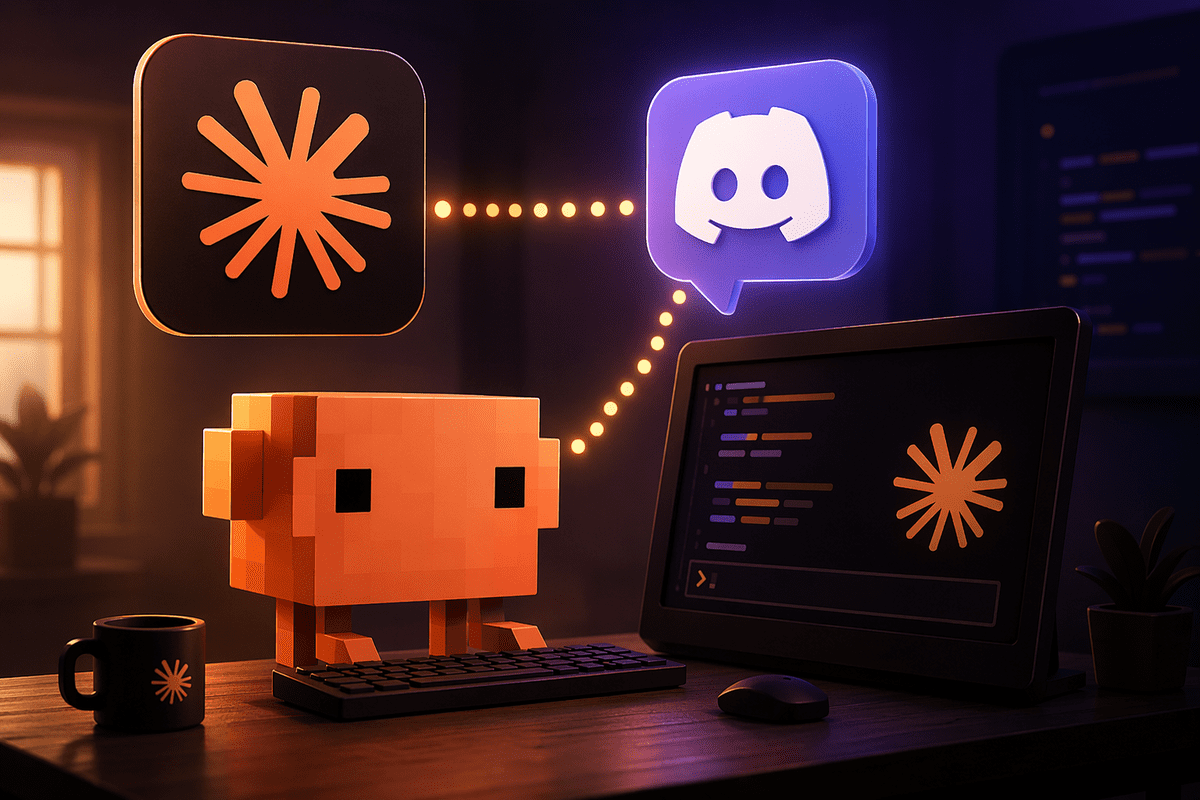
-
Establish a Working Directory: After installation, it is good practice to create a dedicated directory for your Claude Code Channels project. Navigate to this directory using command-line prompts:
mkdir my-channels
cd my-channels
This ensures all project-related files and configurations are neatly organized, preventing potential conflicts with other system files.
-
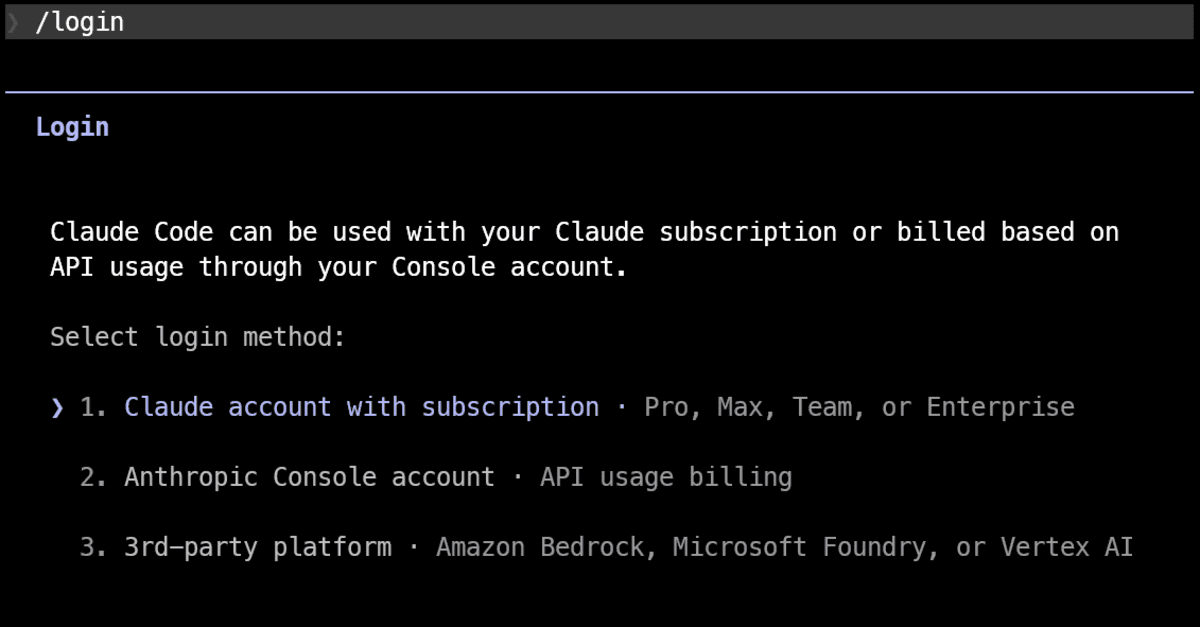
Launch Claude Code and Log In: With the working directory established, launch Claude Code. This action typically opens an interactive terminal-based environment.
claudeUpon its first launch, Claude Code will prompt the user to log in using their Claude.ai account credentials. This authentication step is paramount, as Channels functionality is contingent upon a successfully authenticated local Claude Code session. The login process links the local environment to the user’s Claude subscription, granting access to the AI’s capabilities.
Phase Two: Integrating Bun and Discord Plugin Installation
Claude Code’s official Channels plugins are built upon Bun, a fast, all-in-one JavaScript runtime, bundler, test runner, and Node.js-compatible package manager. Therefore, installing Bun is the next critical step.
-
Install Bun: In a new PowerShell window or after exiting the Claude Code session, install Bun:
irm bun.sh/install.ps1 | iexThis command fetches and installs Bun, which is designed for speed and efficiency in JavaScript development, making it an ideal choice for powering AI integration plugins.
-
Verify Bun Installation: To confirm Bun has been successfully installed and is accessible from your system’s PATH, you can run a simple version check command (though the article doesn’t provide it,
bun --versionis standard). -
Add Official Plugin Marketplace: Return to your active Claude Code session (or restart it if you closed it). The first plugin-related command is to add the official Anthropic plugin marketplace:
/plugin marketplace add anthropics/claude-plugins-officialThis command registers the official repository where Channels plugins are hosted, making them discoverable by your Claude Code instance.
-
Update Plugin Marketplace: To ensure you have access to the latest versions and new additions, update the marketplace:
/plugin marketplace update claude-plugins-officialThis synchronizes your local plugin index with the remote marketplace, crucial for fetching up-to-date integrations.
-
Install the Official Discord Plugin: With the marketplace configured, install the specific Discord plugin:
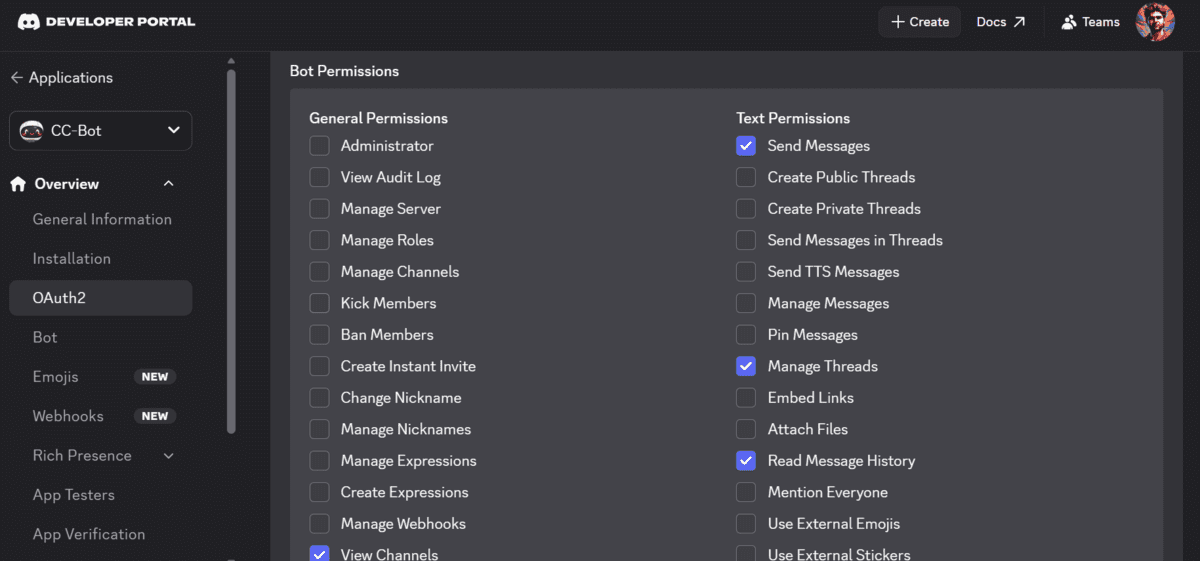
/plugin install discord@claude-plugins-officialThis command downloads and integrates the Discord Channels plugin into your local Claude Code environment, enabling the AI to interact with Discord.
-
Reload Plugins: Finally, reload the plugins to activate the newly installed Discord integration within your current Claude Code session:
/plugin reloadThis step ensures that Claude Code recognizes and can utilize the Discord Channels functionality, completing the software-side preparation for integration. At this juncture, Claude Code is technically ready to establish a connection with Discord.
Phase Three: Discord Bot Creation and Configuration
The next set of steps shifts focus to the Discord platform, requiring the creation and configuration of a Discord bot that will serve as the intermediary between Claude Code and your Discord server.
-
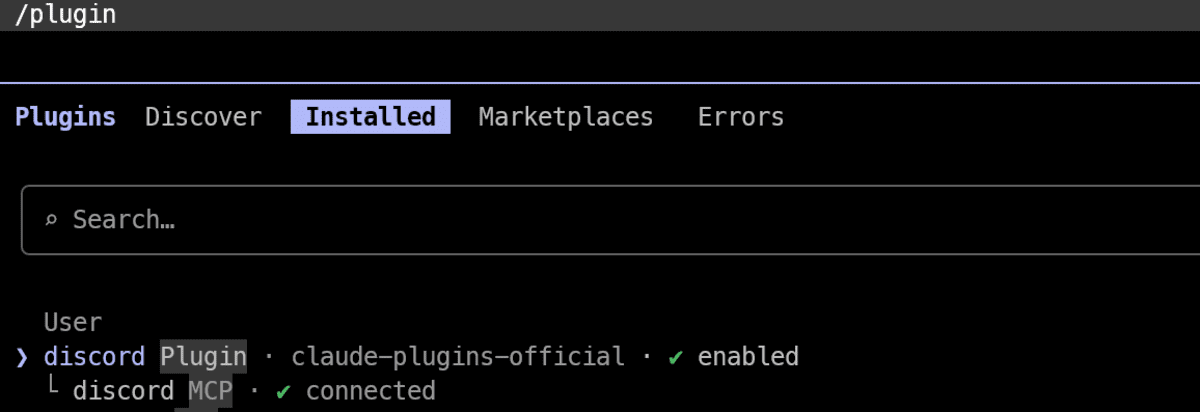
Access Discord Developer Portal: Navigate to the Discord Developer Portal (discord.com/developers/applications). This is the central hub for creating and managing Discord applications and bots.
-
Create a New Application: Click "New Application" and provide a name for your bot. This application will house your bot’s identity and settings.
-
Create a Bot User: Within your newly created application, go to the "Bot" section on the left sidebar. Click "Add Bot" to create a bot user associated with your application.
-
Obtain and Secure Bot Token: After creating the bot, you will see a "Token" field. Click "Reset Token" and copy the generated token immediately. This token is a sensitive credential that grants full control over your bot; it must be kept confidential and stored securely. Loss or compromise of this token could allow unauthorized access to your bot.
-
Enable Message Content Intent: A critical step for modern Discord bots is enabling "Message Content Intent." Without this intent, your bot will not be able to read the content of messages sent by users, effectively rendering it unable to respond to commands or inquiries. Navigate to the "Privileged Gateway Intents" section within the "Bot" settings and toggle on "Message Content Intent." This change is essential due to Discord’s updated API policies aimed at enhancing privacy and reducing bot spam.
-
Generate Invite Link and Set Permissions: Go to the "OAuth2" section, then select "URL Generator." Here, you will define the permissions your bot requires to function correctly within a Discord server. For a Claude Code Channels bot, essential permissions include:
bot: This scope is fundamental for adding the bot to a server.Send Messages: Allows the bot to post messages in channels.Read Message History: Enables the bot to read past messages, which can be crucial for context in conversations.Use External Emojis(optional but recommended for richer responses).Embed Links(optional but useful for structured responses).
Select these permissions, and Discord will generate an invite link.
-
Add Bot to Your Server: Use the generated invite link to add the bot to your desired Discord server. Ensure you have administrator permissions on the target server to complete this action. Once added, the bot will appear offline until connected to Claude Code.
Phase Four: Connecting Claude Code to Discord
With the Discord bot configured and ready, the final technical steps involve linking your local Claude Code session to your new Discord bot using the token obtained earlier.
-
Configure Discord Plugin with Bot Token: Return to your Claude Code session. Use the
/discord:configurecommand, replacingYOUR_DISCORD_BOT_TOKENwith the token you copied from the Discord Developer Portal:/discord:configure YOUR_DISCORD_BOT_TOKENClaude Code is designed to store this token securely within its Channels configuration directory, eliminating the need to re-enter it for subsequent sessions. This configuration establishes the programmatic link between your local AI environment and your Discord bot.
-
Restart Claude Code with Channels Enabled: After configuring the token, restart Claude Code, this time explicitly enabling the Discord Channels plugin:
claude --channels plugin:discord@claude-plugins-officialThis command initiates Claude Code with the Discord integration active, allowing it to begin listening for and responding to Discord messages.
-
Optional: Auto-Approve Permissions for Smoother Interaction: For a more seamless and less interruptive Discord experience, particularly in trusted environments, you can start Claude Code with an auto-approve flag. This prevents Claude Code from prompting for permission each time it needs to use a tool or take an action.
claude --dangerously-skip-permissions --channels plugin:discord@claude-plugins-officialImportant Note: The
--dangerously-skip-permissionsflag should be used with caution. It grants Claude Code the ability to execute actions without explicit user confirmation, which could have unintended consequences if the environment is not fully trusted or if the AI’s behavior is not closely monitored. This option is generally recommended for personal, controlled setups or development environments where the implications are well understood.
Phase Five: Pairing Discord Account and Initiating Interaction
The final stage involves pairing your personal Discord account with the Claude Code session and setting access policies to ensure controlled usage.
-
Initiate Pairing with a Direct Message: Once Claude Code is running with Channels enabled (and your Discord bot is added to your server), send a direct message (DM) to your bot in Discord. The bot should respond with a unique pairing code. This code is a temporary key designed to link your Discord user ID with the active Claude Code session.
-
Enter Pairing Code in Claude Code: Take the pairing code received in Discord and enter it into your Claude Code session:
/discord:access pair YOUR_PAIRING_CODEThis command completes the pairing process, effectively telling Claude Code which Discord user it should associate with its responses.
-
Lock Access to Approved Users: To prevent unauthorized users from interacting with your Claude Code bot, it is crucial to set an access policy. The
allowlistpolicy restricts bot interaction to only those users who have been explicitly paired or added to an approved list.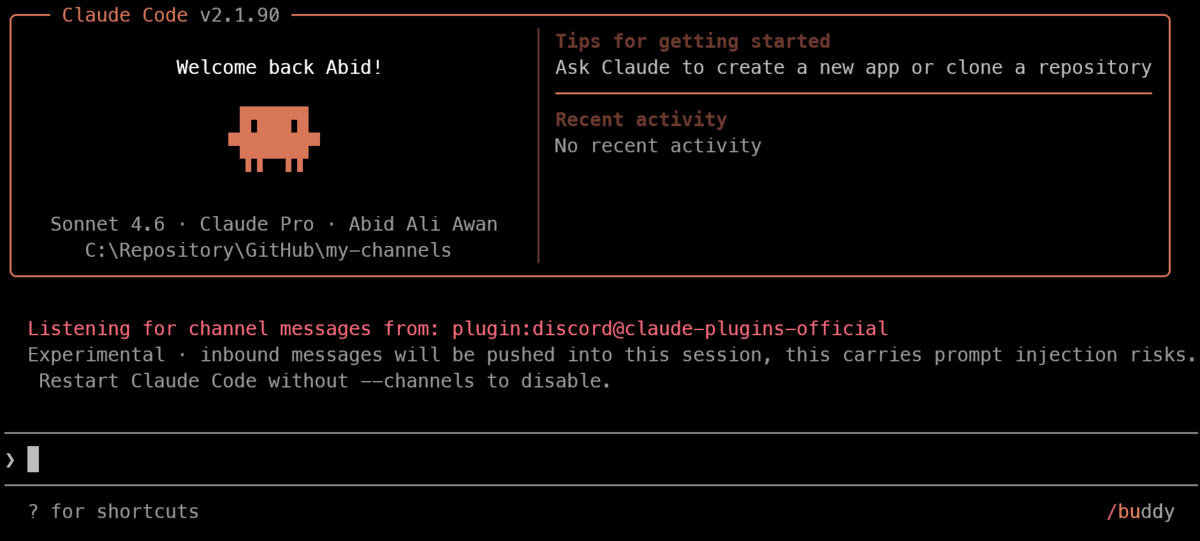
/discord:access policy allowlistThis step enhances the security and control over your AI assistant, ensuring that only intended individuals can leverage its capabilities through Discord.
-
Begin Interaction: With all configurations complete, you can now message your bot in Discord, and Claude Code will process your requests and respond through your local session. The bot acts as a direct conduit, translating Discord messages into inputs for Claude Code and relaying Claude’s outputs back to Discord.
Broader Implications and Future Outlook
The ease of setting up Claude Code Channels for Discord integration carries significant implications for various sectors. For developers, it democratizes access to powerful AI capabilities, enabling rapid prototyping of AI-driven features within social platforms. Community managers can deploy intelligent assistants to enhance member engagement, provide instant support, and automate routine tasks, fostering more vibrant and self-sufficient communities. Educational institutions can create interactive learning environments, while businesses can leverage internal Discord servers for AI-assisted brainstorming, documentation, and project management.
This streamlined integration reflects a strategic move by Anthropic to broaden the practical application of its AI. By reducing the barrier to entry for AI deployment, Code Channels encourages experimentation and innovation, potentially leading to novel uses of AI in collaborative and social contexts. The emphasis on local sessions and direct control also addresses growing concerns around data privacy and sovereignty, allowing users to process sensitive information without necessarily sending it to external cloud services, depending on their specific setup and data handling practices.
As AI models continue to advance, tools like Claude Code Channels will likely become even more sophisticated, offering richer integrations and more nuanced control. The trend toward accessible, locally-run AI agents suggests a future where intelligent assistants are not just omnipresent but also highly customizable and directly responsive to individual and community needs, transforming how we interact with technology and each other.
Troubleshooting and Maintenance
While the setup process is designed to be straightforward, encountering issues is not uncommon. Here are some common troubleshooting points:
- Bot Unresponsive:
- Check Claude Code Session: The most frequent cause of an unresponsive bot is that the local Claude Code session is not actively running. Remember, the bot only functions while Claude Code is operational on your machine.
- Verify Bot Token: Ensure the Discord bot token configured in Claude Code is correct and hasn’t expired or been reset in the Discord Developer Portal.
- Message Content Intent: Confirm that "Message Content Intent" is enabled for your bot in the Discord Developer Portal. Without it, the bot cannot read messages.
- Permissions: Double-check that your Discord bot has the necessary permissions (e.g.,
Send Messages) in the OAuth2 URL Generator. - Firewall/Network: Ensure no local firewall rules are blocking Claude Code or Bun from accessing the internet.
- Pairing Code Not Received:
- Ensure the bot is online in Discord (it should appear online once Claude Code is running with the channels plugin).
- Confirm you are sending a direct message to the bot, not a message in a server channel (for the initial pairing).
bunCommand Not Found:- Verify Bun was installed correctly and its installation directory is added to your system’s PATH environment variable. Restarting your terminal or computer might be necessary after installing system-wide tools.
- Plugin Installation Errors:
- Check for typos in plugin commands.
- Ensure your internet connection is stable.
- Try updating the marketplace again:
/plugin marketplace update claude-plugins-official.
- Unexpected Behavior with
--dangerously-skip-permissions:- If the bot is performing actions you did not intend, immediately restart Claude Code without this flag to re-enable manual confirmation for actions. Review your setup and the specific commands you are giving the AI.
By adhering to these steps and understanding the underlying principles, users can successfully deploy a powerful Claude AI assistant within their Discord communities, unlocking new avenues for interaction and productivity.










Leave a Reply