
The ability to write data to files is a cornerstone skill in Python programming, providing the crucial capability to achieve data persistence. Unlike variables, which lose their state once a program terminates, files allow for the permanent storage of information, making them indispensable for a vast array of applications. This fundamental operation enables developers to store application results, maintain system logs, generate reports, capture user input, manage configuration settings, and archive structured datasets. Understanding Python’s file handling mechanisms is not merely a convenience but a prerequisite for building robust, functional, and scalable software solutions.
This comprehensive guide delves into the intricacies of file writing in Python, starting from the most basic text file creation and progressing to advanced techniques. Readers will learn to craft text files, manage multiple lines of content, append new data to existing files, navigate directory structures using modern path management tools, and serialize data into widely adopted formats such as CSV and JSON. A detailed examination of essential file modes—including w (write), a (append), x (exclusive creation), and r (read)—will equip learners with the knowledge to select the appropriate mode for any given scenario. By the conclusion, readers will possess a solid understanding of Python’s file I/O capabilities, enabling them to implement sophisticated data storage solutions in their programs.
The Foundation: Writing Your First Text File
The most straightforward method to initiate file writing in Python involves the built-in open() function. This function serves as the gateway to file operations, establishing a connection between the Python program and the file system. When invoked, open() requires at least two arguments: the file’s name (or path) and the mode in which the file should be opened.
Consider the w mode, signifying "write mode." When open() is called with this mode:
- If the specified file does not exist, Python will automatically create it.
- If the file already exists, Python will truncate it, meaning its entire existing content will be deleted before any new data is written. This behavior makes
wmode suitable for creating new files or overwriting outdated information.
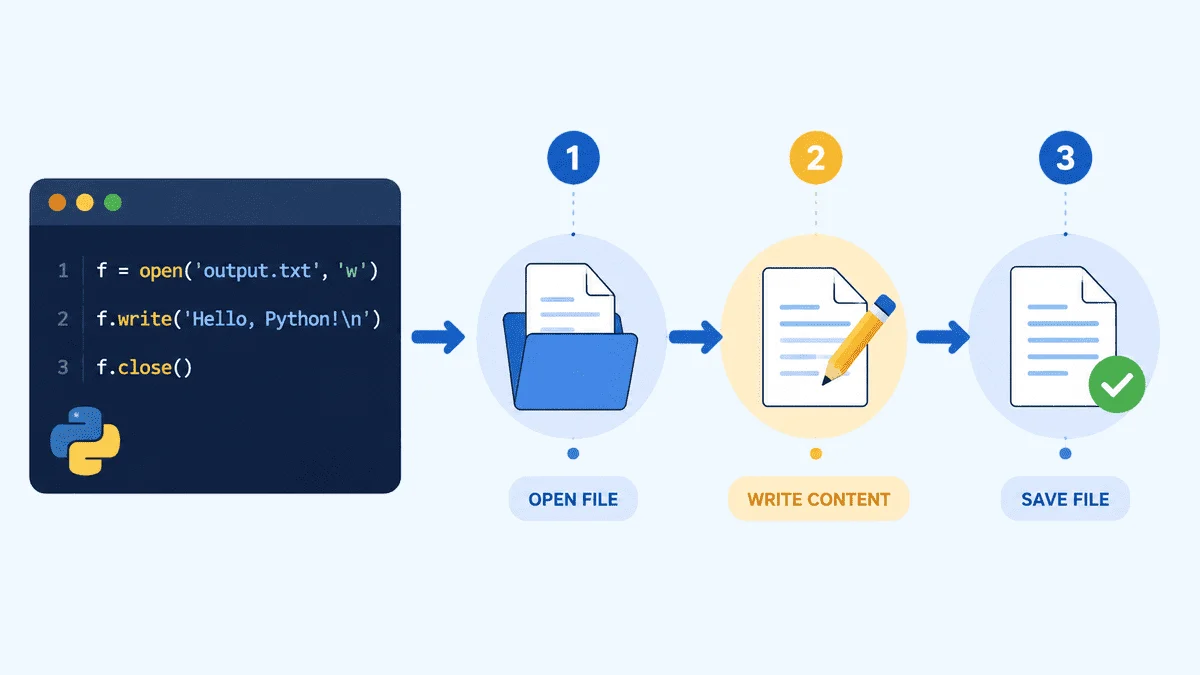
file = open("message.txt", "w")
file.write("Hello, this is my first file written with Python.")
file.close()
Upon execution, this code snippet creates a file named message.txt within the same directory as the Python script or notebook. To verify the operation, the file can be subsequently read back into memory:
file = open("message.txt", "r")
content = file.read()
file.close()

print(content)
Output:
Hello, this is my first file written with Python.This initial example illustrates the fundamental steps: opening a file, writing content, and then explicitly closing the file. While functional, this manual approach to file management carries inherent risks, particularly the potential for resource leaks if file.close() is inadvertently omitted.
Embracing Best Practices: The with open() Statement
Although manual file opening and closing are technically viable, the universally recommended and safer approach in Python is to utilize the with open() statement. This construct, known as a context manager, automatically handles the closing of the file once the code block within the with statement is exited, regardless of whether the block completes successfully or encounters an error. This mechanism significantly enhances code reliability and prevents resource mismanagement.
with open("message.txt", "w") as file:
    file.write("This file was written using with open().")

# The file is automatically closed here.

with open("message.txt", "r") as file:
    content = file.read()

print(content)
Output:
This file was written using with open().The with open() statement is considered best practice because it abstracts away the responsibility of remembering to close the file, leading to cleaner, more robust, and more Pythonic code. Its adoption is widespread across professional Python projects, aligning with the language’s emphasis on readability and maintainability. This approach is particularly critical in scenarios where errors might occur during file processing, ensuring that file handles are released promptly, preventing potential file corruption or system resource exhaustion.
Deeper Dive into File Modes: Controlling File Interaction
When interacting with files, the mode specified in the open() function dictates the intended operation. Python offers a range of modes, each designed for a specific interaction pattern. Understanding these modes is crucial for performing file operations correctly and safely.
| Mode | Meaning | Behavior if File Exists | Behavior if File Does Not Exist | Common Use Case |
|---|---|---|---|---|
w |
Write to a file. | Truncates (clears) existing content. | Creates a new file. | Creating new files, overwriting old data. |
a |
Append to a file. | Adds new content to the end of the file. | Creates a new file. | Logging, adding entries to journals/reports. |
x |
Exclusive Creation mode. | Raises FileExistsError. |
Creates a new file. | Ensuring a file is truly new, preventing accidental overwrites. |
r |
Read from a file. | Reads content from the beginning. | Raises FileNotFoundError. |
Reading configuration files, data input. |
b |
Binary mode (can be combined with w, a, x, r). |
Depends on primary mode (wb, ab, xb, rb). |
Depends on primary mode (wb, ab, xb, rb). |
Handling non-text files (images, executables, serialized objects). |
t |
Text mode (default, can be combined with w, a, x, r). |
Depends on primary mode (wt, at, xt, rt). |
Depends on primary mode (wt, at, xt, rt). |
Handling text files (default character encoding). |
For file writing operations, w and a are the most frequently employed modes. w is chosen when the intention is to either create a new file or completely replace the content of an existing one. Conversely, a is preferred when the goal is to add new data to the end of a file without altering its current contents, a common requirement for logging systems or incremental data updates. The x mode offers a critical safety mechanism, preventing accidental data loss by raising an error if the target file already exists, making it ideal for operations that must guarantee the creation of a genuinely new file.
Managing Multi-Line Content and Data Streams
Writing single lines to a file is straightforward, but real-world applications often necessitate writing multiple lines of text or even entire lists of strings. Python provides elegant ways to handle these scenarios.
To write multiple lines individually, one can explicitly include the newline character (n) at the end of each string. This character signals to the file system that the subsequent text should start on a new line.
with open("notes.txt", "w") as file:
    file.write("Line 1: Learn Pythonn")
    file.write("Line 2: Practice file handlingn")
    file.write("Line 3: Build small projectsn")
Reading this file back confirms the multi-line structure:
with open("notes.txt", "r") as file:
    print(file.read())
Output:
Line 1: Learn Python
Line 2: Practice file handling
Line 3: Build small projects
For scenarios involving a collection of strings, such as a list, Python’s writelines() method offers a more efficient way to write all items to a file. It accepts an iterable (e.g., a list or tuple) of strings.
tasks = [
    "Write Python coden",
    "Run the notebookn",
    "Check the output filen"
]

with open("tasks.txt", "w") as file:
    file.writelines(tasks)
A crucial detail to remember when using writelines() is that it does not automatically append newline characters. Each string within the iterable must explicitly contain n if line breaks are desired. Forgetting this can result in all strings being concatenated into a single, unformatted line within the file.
Reading the tasks.txt file demonstrates the effect:
with open("tasks.txt", "r") as file:
    print(file.read())
Output:
Write Python code
Run the notebook
Check the output file
The ability to write multiple lines and leverage writelines() is essential for tasks like generating reports, saving log data, or exporting textual data structures, ensuring that the output file maintains proper formatting and readability.
Preserving Data: Appending to Existing Files
In many programming contexts, the goal is not to overwrite existing file content but rather to extend it. This is particularly common in applications that generate logs, maintain journals, or incrementally update reports over time. For such operations, Python’s "append mode" (a) is the appropriate choice.
When a file is opened in append mode, any new data written to it will be added to the very end of the file, leaving all pre-existing content intact. If the file does not exist, a mode behaves similarly to w mode by creating a new file.
# Initial write in 'w' mode to create or reset the file
with open("journal.txt", "w") as file:
    file.write("Day 1: I started learning Python file handling.n")

# Subsequent write in 'a' mode to add content
with open("journal.txt", "a") as file:
    file.write("Day 2: I learned how to append text to a file.n")
    file.write("Day 3: I am getting more comfortable with file I/O.n") # Added another line for demonstration
To confirm the successful appending of data, the file can be read:
with open("journal.txt", "r") as file:
    print(file.read())
Output:
Day 1: I started learning Python file handling.
Day 2: I learned how to append text to a file.
Day 3: I am getting more comfortable with file I/O.
Append mode (a) is invaluable for maintaining data integrity when continuous additions are required, such as in web server logs, application event trackers, or user activity journals. It ensures that historical data is preserved while new information is seamlessly integrated.
Safeguarding Data: Exclusive File Creation with x Mode
Preventing accidental data loss is a critical aspect of robust software development. The w mode, while convenient for overwriting, poses a risk if an existing file contains valuable data that should not be deleted. To address this, Python offers the "exclusive creation" mode (x).
The x mode guarantees that a new file will only be created if a file with the specified name does not already exist in the target location. If a file with that name does exist, Python will raise a FileExistsError, thereby preventing any data from being overwritten. This mode is particularly useful when developing systems where data uniqueness and integrity are paramount, such as creating unique temporary files or ensuring that a configuration file is initialized only once.
To handle the potential FileExistsError gracefully, it is best practice to enclose the file operation within a try-except block.
try:
    with open("new_report.txt", "x") as file:
        file.write("This report was created exclusively using 'x' mode.")
    print("File 'new_report.txt' created successfully.")
except FileExistsError:
    print("Error: The file 'new_report.txt' already exists. No overwrite occurred.")
except OSError as e: # Catch other potential OS errors like permissions
    print(f"An OS error occurred: e")
If new_report.txt does not exist when the code runs, the output will be:
File 'new_report.txt' created successfully.If new_report.txt already exists, the output will be:
Error: The file 'new_report.txt' already exists. No overwrite occurred.The x mode provides an essential layer of protection against unintended data destruction, making it a valuable tool in a developer’s arsenal for building resilient applications.
Navigating File Systems: Working with File Paths and Directories
By default, Python’s file operations occur in the current working directory—typically the same folder where the script is executed or the notebook is running. However, real-world applications frequently require saving files to specific, organized locations, such as dedicated output folders, log directories, or user-specific data paths. Managing file paths effectively is crucial for application organization and cross-platform compatibility.
Python’s pathlib module, introduced in Python 3.4, offers an object-oriented approach to file system paths, providing a more intuitive and robust alternative to the older os.path module. pathlib objects represent file system paths and offer methods for common operations, abstracting away platform-specific path separators (e.g., on Windows, / on Linux/macOS).
To save a file within a specific directory, the pathlib module can be used to construct the path and ensure the target directory exists.
from pathlib import Path

# Define the target output folder
output_folder = Path("output_data")

# Create the folder if it doesn't exist. exist_ok=True prevents an error if it already exists.
output_folder.mkdir(exist_ok=True)

# Construct the full path to the file within the output folder
file_path = output_folder / "summary.txt" # Using the / operator for path concatenation

with open(file_path, "w") as file:
    file.write("This file was saved inside the output_data folder using pathlib.")

print(f"File saved to: file_path")
Output:
File saved to: output_data/summary.txtNow, to read the file from its new location:
# The path to read from needs to match the path it was saved to
read_file_path = Path("output_data") / "summary.txt"
with open(read_file_path, "r") as file:
    print(file.read())
Output:
This file was saved inside the output_data folder using pathlib.The mkdir(exist_ok=True) method is particularly useful; it creates the directory only if it doesn’t already exist. If the directory is present, the call simply passes without raising an error, making directory creation idempotent and safe for repeated execution. pathlib simplifies path manipulation, making code cleaner and more resilient to varying operating system environments.
Structured Data Storage: Writing CSV Files
Beyond plain text, many applications require storing data in structured formats that can be easily processed by other tools or applications. CSV (Comma Separated Values) is a ubiquitous format for tabular data, widely used for data exchange between spreadsheets, databases, and analytical software like Microsoft Excel or Google Sheets. Python’s built-in csv module provides robust functionality for reading and writing CSV files.
When writing CSV files, it’s crucial to correctly handle delimiters (typically commas), quoting rules, and newline characters to ensure compatibility with other software. The csv.writer object is central to this process.
import csv

# Data represented as a list of lists, where each inner list is a row
students_data = [
    ["Name", "Score", "Grade"], # Header row
    ["Ayesha", 92, "A"],
    ["Bilal", 85, "B"],
    ["Sara", 88, "A-"],
    ["David", 78, "C+"] # Added another entry for more data
]

# Open the file in write mode, with newline="" to prevent extra blank rows
with open("students.csv", "w", newline="") as file:
    writer = csv.writer(file)
    writer.writerows(students_data) # Writes all rows at once
The newline="" argument in open() is critically important, especially on Windows, as it prevents the csv module from adding extra blank rows, which can occur due to differing newline conventions (n vs. rn).
Reading the generated CSV file demonstrates its structured nature:
with open("students.csv", "r") as file:
    print(file.read())
Output:
Name,Score,Grade
Ayesha,92,A
Bilal,85,B
Sara,88,A-
David,78,C+
The csv module also supports csv.DictWriter for writing dictionaries as rows, which can be more convenient when working with named columns. Proper CSV handling ensures data integrity and interoperability, making it a staple for data-driven applications.
Advanced Structured Data: Writing JSON Files
JSON (JavaScript Object Notation) is another highly popular and versatile format for structured data, particularly favored in web development for API responses, configuration files, and data interchange. Its human-readable, hierarchical structure makes it ideal for representing dictionaries, lists, and nested data. Python’s json module offers comprehensive capabilities for encoding (serializing) Python objects into JSON format and decoding (deserializing) JSON data back into Python objects.
When writing JSON, Python objects such as dictionaries and lists are directly mapped to JSON objects and arrays, respectively. Basic data types like strings, numbers, booleans, and None also have direct JSON equivalents.
import json

# A Python dictionary representing a user profile
user_profile =
    "name": "Ayesha",
    "role": "Data Analyst",
    "skills": ["Python", "SQL", "Excel", "Machine Learning"], # Added another skill
    "experience_years": 5, # Added numerical data
    "active_status": True,
    "contact":  # Nested dictionary
        "email": "[email protected]",
        "phone": None


# Open the file in write mode
with open("profile.json", "w") as file:
    # json.dump() writes the Python object to the file
    # indent=4 makes the output human-readable with 4-space indentation
    json.dump(user_profile, file, indent=4)
The indent=4 argument is crucial for generating a human-readable JSON file. Without it, json.dump() would write the entire JSON object on a single line, making it difficult to inspect.
Reading the JSON file reveals its structured, indented format:
with open("profile.json", "r") as file:
    print(file.read())
Output:
    "name": "Ayesha",
    "role": "Data Analyst",
    "skills": [
        "Python",
        "SQL",
        "Excel",
        "Machine Learning"
    ],
    "experience_years": 5,
    "active_status": true,
    "contact":
        "email": "[email protected]",
        "phone": null
The json module’s dump() function simplifies the serialization of complex Python data structures to disk, making it an indispensable tool for applications that interact with web services, manage configuration data, or store complex, schema-less datasets.
Common Pitfalls and Robust File Handling
Even with a clear understanding of file operations, beginners and experienced developers alike can encounter common issues. Addressing these proactively enhances the robustness and reliability of any application.
| Mistake | What Happens | How to Fix It |
|---|---|---|
| Forgetting to close the file | Changes may not be saved, file corruption, resource leaks. | Always use with open(). It automatically handles file closure, even if errors occur. |
Using w instead of a |
Existing content gets unexpectedly deleted. | Use a (append mode) when the intention is to add data without removing previous content. w should only be used for new files or intentional overwrites. |
Forgetting n |
All written text appears on a single, unformatted line. | Manually add n at the end of each string when writing lines, or ensure your data preparation (e.g., list of strings for writelines()) includes newline characters. |
| Writing to a missing folder | Python raises FileNotFoundError or OSError. |
Create the folder first using Path.mkdir(exist_ok=True) or os.makedirs(exist_ok=True). |
| Writing non-string data directly | Python raises a TypeError (e.g., writing an integer). |
Convert non-string values to strings using str() before writing to text files. For structured data, use specialized modules like csv or json. |
| Incorrect File Encoding | UnicodeEncodeError or garbled characters in the file. |
Specify encoding='utf-8' (or another appropriate encoding) in the open() function for text files, especially when dealing with non-ASCII characters. UTF-8 is the universally recommended standard for text. |
| Permission Errors | PermissionError when trying to write to protected locations. |
Ensure the Python script has write permissions for the target directory. Run as administrator/root if necessary (with caution), or select a different, user-writable directory. |
| Concurrent File Access | Data corruption or race conditions if multiple processes write to the same file. | For advanced scenarios, implement file locking mechanisms (e.g., fcntl on Unix-like systems, msvcrt on Windows) or use database solutions for concurrent access. Avoid simple concurrent writes to the same file in basic scenarios. |
Understanding and mitigating these common errors is paramount for developing robust applications. Adopting with open(), choosing the correct file mode, managing paths effectively, and being mindful of data types and encodings are essential practices for successful file handling in Python.
The Broader Impact and Implications of File I/O
File input/output (I/O) in Python is more than just a programming trick; it’s a foundational capability that underpins nearly every significant software application. The ability to reliably store and retrieve data directly impacts an application’s resilience, its capacity to manage user-generated content, persist configuration settings, and effectively log system events. From simple command-line tools to complex data processing pipelines and web applications, file I/O serves as the initial layer of data persistence, often complementing or preceding more sophisticated database solutions.
In the realm of data science, file handling is crucial for loading datasets (CSV, JSON, text files), saving intermediate processing results, and exporting final analytical reports. For system administrators and DevOps engineers, it’s indispensable for scripting automation tasks, managing configuration files, and parsing log data to monitor system health. Web developers utilize it for storing user-uploaded content, caching data, and managing server-side configurations. Python’s native, efficient, and versatile file handling capabilities make it a preferred language for these diverse applications.
Effective file handling directly contributes to:
- Data Integrity: Proper use of modes like
xand careful error handling prevent data corruption or accidental loss. - Application Robustness: Reliable saving and loading mechanisms ensure applications can recover from interruptions and maintain state.
- Scalability: While not a primary solution for massive, concurrent data, file I/O forms the base for structured data formats that can scale to larger datasets when combined with other tools.
- Interoperability: Writing to standard formats like CSV and JSON ensures that data can be easily shared and consumed by other programs, systems, and platforms.
In conclusion, mastering file writing in Python is an essential skill for any developer. It empowers programs to transcend temporary in-memory operations and interact meaningfully with the persistent world of data storage. By consistently employing with open() for resource management, selecting the appropriate file mode (w, a, x), handling paths with pathlib, and leveraging specialized modules for structured data (CSV, JSON), developers can build reliable, efficient, and maintainable applications. These core competencies are fundamental to developing impactful solutions across various domains, cementing Python’s role as a versatile and powerful programming language.
Abid Ali Awan (@1abidaliawan) is a certified data scientist professional with a passion for building machine learning models and contributing to the data science community through content creation and technical blogs. He holds a Master’s degree in technology management and a bachelor’s degree in telecommunication engineering. Abid is dedicated to leveraging his expertise to innovate, with a vision to develop AI solutions, including using graph neural networks to support students facing mental health challenges.